It’s easy to take the tools we use everyday for granted, especially if we don’t know what they’re not capable of. But a host of software updates have come out this month and the results are pretty amazing. For everything from enhanced video editing to integrated online document editing to blocking advanced threats from malicious software, these critical updates to some of your favorite software will make your tech run smoother and make your job easier.
technology news covering Software, Whats new in Software, computing, home entertainment systems, gadgets and more.
Monday, 20 April 2015
Software Updates To Boost Productivity, Cybersecurity
Netflix Hits 60 Million Subscribers Worldwide
Netflix has announced it reached 60 million global subscribers earlier this year, adding an extra four million from late 2014. Two million came from the US, two millions from overseas, showing the demand worldwide for the video streaming service.
40 million customers come from the US, making the bulk of its service focused on the American audience. It has been acquiring more content from cable channels in the hope of adding even more customers, even though several analysts claim the US market is nearing saturation point in terms of subscribers.
The overseas market is looking a lot more juicy for Netflix. 20 million customers are already subscribed, but if Netflix is able to bring more US TV shows and movies to its global platform, it should entice even more customers alongside local TV shows it has acquired.
Netflix CEO Reed Hastings spoke about the issues with licensing and how the video streaming service wants to create Netflix Global. This would apparently lower the amount of piracy in Europe and Asia, from customers incapable of viewing US shows abroad without paying an extortionate amount or signing up to a different cable provider.
It might be some time before it is able to offer this global platform, but until then Netflix will focus on growing out its service to 200 countries. It is currently in less than 40, and in some only the basic TV shows and films are available.
Investors seemed very impressed with Netflix’s report, with stock shooting up to $538 per share, the highest in the company’s history. Profit dropped to $23 million from $53 million in the previous quarter, due to new investments in overseas content as we said before.
HBO recently launched its own streaming service called HBO Now, allowing internet customers to pay $14.99 to watch Game of Thrones, True Detective and a whole host of other TV programmes Netflix is probably never going to get its hands on.
This could be problematic for Netflix, but its own original programming appears to be winning a lot of customers. House of Cards continues to be a raging success, and other shows like Orange is the New Black and Marco Polo will return later this year.
Friday, 17 April 2015
Cybersecurity Report: Elite Hackers, Or Human Error?
Two new cybersecurity reports were released this week and they brought some surprising news: hackers don’t have to be great at what they do… employees do the hard work of infiltrating a network for them.
The reports–conducted separately by Verizon Communications and Symantec–showed that the biggest threat to business networks isn’t teams of black hat hackers or hostile foreign governments, but employees–from the hourly wage lackeys up through corporate CEOs–who click on malicious links, fall for phishing scams, or simply don’t protect the network with the company’s own mandated protocols.
The Verizon report demonstrated the top way that hackers get access to a network, which is by sending out phishing emails–which nine employees out of ten have fallen for, according to their research–which in turn installs malicious software on the network. Once the software is in place and the hacker gains access to the employee’s credentials, the rest is easy. He can roam around inside the network and exploit any file he wishes, or can even write his own software to prevent the system’s anti-intrusives from finding him.
Symantec’s report had even more daunting news: phishing attempts are so successful that even government spies are relying on that form of attack. Why hire highly-skilled, sophisticated hackers when all it takes is a bogus video link with the promise of a cat playing the keyboard to get clueless workers to open the door for you?
Still one of the easiest ways to violate a network or device, whether it’s from a Fortune 500 company or your grandmother’s smartphone, lies in the fact that users don’t like to install updates. This ignorance of the importance of updating lets hackers exploit known vulnerabilities, like last year’s Heartbleed bug, unless a patch is installed. Instead, consumers and workers alike continue to ignore those pesky little pop-ups and leave their systems open to attack.Thursday, 19 February 2015
10 Windows Phone Tricks And Settings You Should Know
You feel so excited as you have just received a brand new Windows Phone. You start exploring the phone in almost all the corners. You have already installed many apps which appear on the start screen. You’ve get used to the gestures, and eventually also find some hidden features.
Yet, with all the features that ship in Windows Phone, there’s a chance that you have missed a couple of handy tricks and useful settings to configure and tune up your Windows Phone. So, here are 10 tricks and settings that you should know to get the most out of Windows Phone. Let’s check them out.
Recommended Reading: 10 Things Windows Phones Do Better Than Android Phones
Capitalize And All-Caps Words Quickly
Typing in Windows Phone can be so much faster, if you know this little trick. For example: while typing, you may highlight a word and tap the Shift key to capitalize the first letter. Tap it a second time and it will capitalize the whole word. Holding down the Shift key will turn on the caps-lock mode.
Turn Off Navigation Key Vibration
Windows Phone handhelds ship with 3 physically sensitive buttons – namely the back button, the home button (which is depicted with the Windows new logo) and the search button. These buttons will vibrate as you tap. If you feel that the vibration is kind of annoying or you simply want to switch it off for whatever reason, go to Settings > Touchand turn off the Navigation Bar.
Action Center Half-View
Windows Phone has finally come with an Action Center that stores app notifications as well as a couple of shortcut settings for quick access. To view the Action Center, swipe your finger from the top edge of the screen down to the bottom. Alternatively, halt your finger at the middle to only view the shortcuts.
Configuring The Action Center Shortcut
There are 4 shortcuts present in the Action Center, but a Windows Phone with a wider screen will have 5. Configure the shortcuts with ones that you frequently need most withSettings > Notification+action menu. Tap one of the current shortcuts, and select another on the list as the substitute.
Remove All Your Notifications In One Swipe
You can remove a notification in the Action Center by swiping your finger from the left to the right of each notification item. But, sometimes you can have heaps of notifications that will tire your fingers out. In that case, use 2 fingers to swipe all of them away in one swift motion.
Move And Install Apps To SD Card
One of the best things about a Windows Phone is that the storage capability is upgradable with an SD Card for up to 64GB. You can store files, images, videos, and even apps in the SD Card instead of within the internal storage.
So, if you have an app that takes up a lot of internal storage, it’s better to move it into the SD Card. To do so, go to Settings > Storage Sense. Tap the app+games and select the game. You will find the button to transfer it to the SD Card.
Note: This button will only appear if you have your SD Card installed.
Mute The Shutter Sound
When taking a picture or taking a screenshot of the phone, you will hear the shutter sound that is similar to the sound a real camera makes . Did you know that you can turn this sound off? If you don’t want people around you to notice that you are taking pictures, go to theSettings > ringtones+sound and untick the Camera shutter.
Assign Nick Name For Cortana
Cortana, though in Beta, is very capable and and up to par with its competitors. Cortana can help you call or text a specific person by calling his/her name. Alternatively, you can also call the nickname. So, instead of call “John Doe”, you may simply tell Cortana to call “Driver” (if he really is so).
Go to the Cortana’s Notebook. Then, select the Inner Circle option and select the the person from the contact list to be assigned for a nickname – you can assign up to 3 nicknames. Cortana’s Notebook is where Cortana learns about you. Therein, aside from the Inner Circle, you can specify your Interest and Favourites as well.
Projecting Screen
You can project Windows Screen to a TV or to your PC screen. This can be very useful for creating screencast tutorial and demonstrating Windows Phone in a presentation. To do this, you will have to install Project My Screen. Connect Windows Phone to PC with USB, and start projecting the screen through the Settings > Project My Screen.
Additionally, turn on the Show touch option to show your finger position on the PC screen with a dot.
Note: This is only applicabale in Windows Phone 8.1.
Disable Narrator Text
Windows Phone is built with accessibility in mind. People with vision disabilities can use Windows Phone through the Narrator function. The Narrator will read aloud the text on the phone. I myself once enabled the Narrator, and it honestly freaked me out.
Once this feature is enabled, some features are disabled, like Swiping, and I could not find my way back to turn it off in the Settings. At the end, I was able to sort it out. You can do it by holding the Volume button and tap the Windows icon at the same time.
15 Free Android VPN Apps To Surf Anonymously
Everyone is getting more concerned about the issue of Internet security especially when making transactions via mobile. VPN (Virtual Private Network) is technology that enables you to add an extra level of security while you surf the Internet without compromising the privacy of personal data, even whilst using public WiFi networks.
There are many ways to access the region-based blocked content as well but VPN software/apps provide a handy way to do so. For the ease of Android users, I have pooled together 10 of the top free Android VPN Apps along with some bonus apps that may prove to be useful.
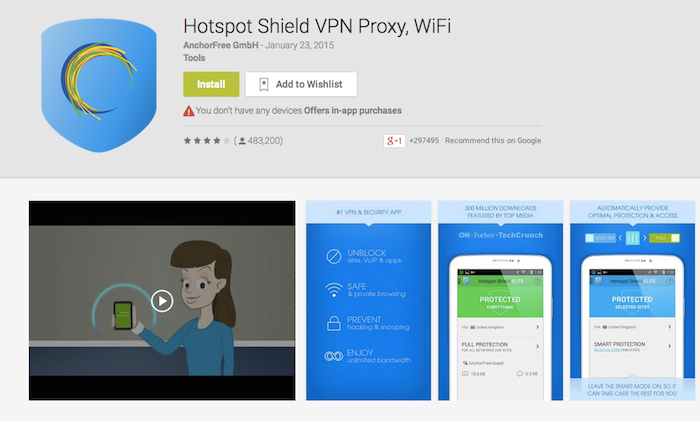
1. Hotspot Shield VPN Proxy
With approximately 330 million downloads around the globe, Hotspot Shield is at the top of the list. Apart from traditional features found in any VPN app, it provides banking-level HTTPS encryption to secure the WiFi connection so that the outgoing data can be protected from eavesdroppers. [Get it here]
2. SecureLine VPN
SecureLine VPN is a nice app developed by Avast. They are famous for developing one of the best antiviruses worldwide. The private VPN Tunnel of SecureLine VPN encrypts the data using IPsec protocol which makes it really tough for hackers to snip the data through public WiFi hotspots. The app will perform all this work for you with just a click. [Get it here]
3. Spotflux VPN
Spotflux is a VPN app which take cares of the seclusion of data by providing 2 levels of protection and reduces the consumption of bandwidth by compressing data. This makes it a suitable choice for those who are interested in securing their data as well as maximizing the data plan available on their device. [Get it here]
4. Hola Free VPN
Hola Free VPN app is mainly for those who are looking for a completely free VPN android App with some striking features. Along with securing data and providing access to geographically blocked content, Hola Free VPN speeds up browsing by selecting and connecting to the nearest and fastest servers automatically from the list of servers located in 190+ countries. [Get it here]
5. Speed VPN
Speed VPN is an app which allows one to connect to the Internet through servers located at multiple geographical locations. It is designed particularly for web browsing by unblocking geographically restricted sites and for viewing low resolution videos. Each session of Speed VPN lasts for 60 minutes and it can be reconnected with a click. [Get it here]
6. Super VPN
Super VPN is an easy to use Android app with approximately 5 million installs around the globe. It encrypts the traffic to keep the transmitted and received data safe from 3rd party tracking without having to register or configure the settings of the device in a special way. Just a single click will enable you to use the Internet and browse websites anonymously. [Get it here]
7. Hideman VPN
The main feature of Hideman VPN is to secure the transmitted data as much as possible and for this purpose the algorithm uses a 256-bit encryption key. This scrambles the original data in such a way that if anyone is monitoring the data they wouldn’t be able to understand it without the key. The app offers 5 free hours per week although premium hours can be earned via in-app ad networks. [Get it here]
8. Touch VPN
Touch VPN encrypts data by using Secure Socket Layer (SSL) which maintains a secure and encrypted link between server and client. The app also helps conserve the battery of the device in comparison to other VPN Apps. This makes it great for those who are looking for an app which offers these 2 features. [Get it here]
9. Flash VPN Proxy
The Flash VPN Proxy app provides secure and encrypted VPN network to make sure that all your incoming and outgoing data remains intact from hackers and data stealers. The best thing about it is that you can use it smoothly because it offers a decent amount of bandwidth for communication, which is only often offered by premium apps. On top of that, there is no limit to how long you can connect for. [Get it here]
10. CyberGhost
CyberGhost is a nice app which provides banking-level security. Usually people have concerns that the apps might access their personal information that’s available on the device, CyberGhost respects the privacy of its users and does not access any personal information. The free version of the app provides access to 23 servers located in 15 countries while the premium version gives access to 300 servers in 23 countries. [Get it here]
Bonus: More Free VPN Apps
11. Tigervpns Android VPN
One-Click Android VPN is an app to protect one’s privacy and hide the source IP address. It offers up to 500MB of free trail traffic upon signing up. [Get it here]
12. Mobiproxy
Another useful VPN app to access the region-based restricted websites without being traced. It provides extra security for outgoing and incoming data. [Get it here]
13. Psiphon
Psiphon provides a simple way to access everything available on the Internet easily with secure VPN tunnel. A user can also explicitly define whether to tunnel everything or just the web browser. [Get it here]
14. Zero VPN
Zero VPN is an app which allows you to use VPN services at zero cost with no difficulty. The interface is easy to use which facilitates in surfing the Internet anonymously. [Get it here]
15. VPN Master
VPN Master is one of the top VPN apps for anonymous Internet usage that doesn’t require registration. It also allows you to choose any server in America, Europe or Asia with 99.9% uptime. [Get it here]
Labels:
Android,
Android appn,
Free Android Apps,
VPN,
VPN apps
Samsung buys digital wallet star to take on Apple Pay

Samsung Electronics on Wednesday announced a deal to buy LoopPay, a young digital wallet firm challenging Apple Pay at retailer checkout terminals.
The South Korean consumer electronics giant did not disclose how much it is paying for Boston-based LoopPay, which was founded in 2013.
LoopPay technology is compatible with approximately 90 percent of retail terminals to let customers tap their phones for payment with registered credit cards, according to Samsung.
LoopPay has been built into smartphone cases as well as into fobs, or dongles, and transmits credit card data using magnetic fields to point of sale terminals in shops to effectuate transactions.
Buying the company will allow Samsung to use the technology to infuse its smartphones or tablets with mobile wallet capabilities that will work with magnetic stripe readers already in most shops.
"Through this deal we can significantly accelerate our mobile commerce efforts," said Samsung global innovation center executive vice president David Eun.
"We are excited to take our relationship with LoopPay to the next level, by bringing consumers a mobile wallet solution that is not just safe and reliable, but also widely accepted at more locations than any competing service."
LoopPay founders Will Graylin and George Wallner will join Samsung's mobile division, according to mobile team president JK Shin.
Apple (NasdaqGS: AAPL - news) has boasted that banks, shops and other businesses are embracing Apple Pay technology that lets new-generation iPhones be used as secure digital wallets.
Apple, which uses a different wireless technology for its iPhone payment system, has said use of its mobile wallet is growing. But the market has remained fragmented with other players.
Samsung is expected to unveil a new flagship smartphone powered by Google Android software at Mobile World Congress taking place in Barcelona the first week of March.
Labels:
Apple,
Digital waller,
digital wallet,
Samsung,
star
Googlifier Adds Googly Eyes to All Photos on the Internet and It's Amazing/Terrible

Have you ever visited a website and thought, “Yeah, this is good, but what if all of the photos on the page had googly eyes on them?”
This is the concept of the Googlifier, a new Chrome extension that lets you add googly eyes to a webpage’s photographs with the click of a button.
It’s an amazing concept and immediately makes literally every website in the world better. Visit any page, tap the Googly Eyes button in your Extensions bar, and wait for your screen to be Googlified.
Look what it did to the Daily Mail’s lead story, for example:
This is already a much more compelling splash, I think we can all agree!
Now, adding Googly Eyes to photographs is fun. But what makes Googlifier even more tremendous, in practice, is how inaccurate it is. You can see this above, in the random little eyeballs popping out of Beyonce’s neck. This happens all the time.
And frankly, it’s fantastic. And I can’t. Stop. Laughing. At Googlifed photos.
Obviously, I’ve been having way too much fun with this tool. And you can too! Googlifier is a free download for Google Chrome here. Now, if you’ll excuse me, I have to visit my Facebook page and Googlify myself.
Labels:
eyes,
Google,
Googlifier,
Googly eyes,
Internet
Subscribe to:
Posts (Atom)